Running out of data in the middle of navigating an unfamiliar city is one of those travel frustrations that feels minor until it actually happens. What makes it worse is that most travelers have no real sense of how fast their data is disappearing until the plan is already gone. International trips introduce variables that do not exist at home: roaming networks that count usage differently, apps that behave unpredictably on foreign networks, and background processes that do not care whether you are at home or sitting in a cafe in a country you have never visited before.
Tracking your usage properly takes about three minutes to set up and saves you from every one of those situations.
Why your usage counter at home is not the one to trust
Most phones track data usage, but the counter never resets itself. If yours has been running for months, it is showing you a number that has nothing to do with your upcoming trip. Here is how to fix that before you leave:
- Your phone’s data counter only resets when you manually do it.
- An uncleared counter from months ago gives you zero useful information for a new trip.
- Reset it on the day you depart so every megabyte counted is from that trip only.
How to reset on your device:
- iPhone: Settings → Mobile Data → scroll to the bottom → Reset Statistics
- Stock Android (Pixel): Settings → Network and Internet → Data Usage → reset or billing cycle option
- Samsung: Settings → Connections → Data Usage → reset option
The built-in tools that most travelers never use properly
- Both iPhone and Android let you set a data warning notification at a threshold you choose, such as 80% of your plan.
- Android goes a step further with a hard data cap that cuts off mobile data automatically once your limit is hit.
- Find the hard cap option directly inside Data Usage settings on most Android devices.
- iPhone has no native hard cap, so a third-party app like My Data Manager is the most reliable workaround.
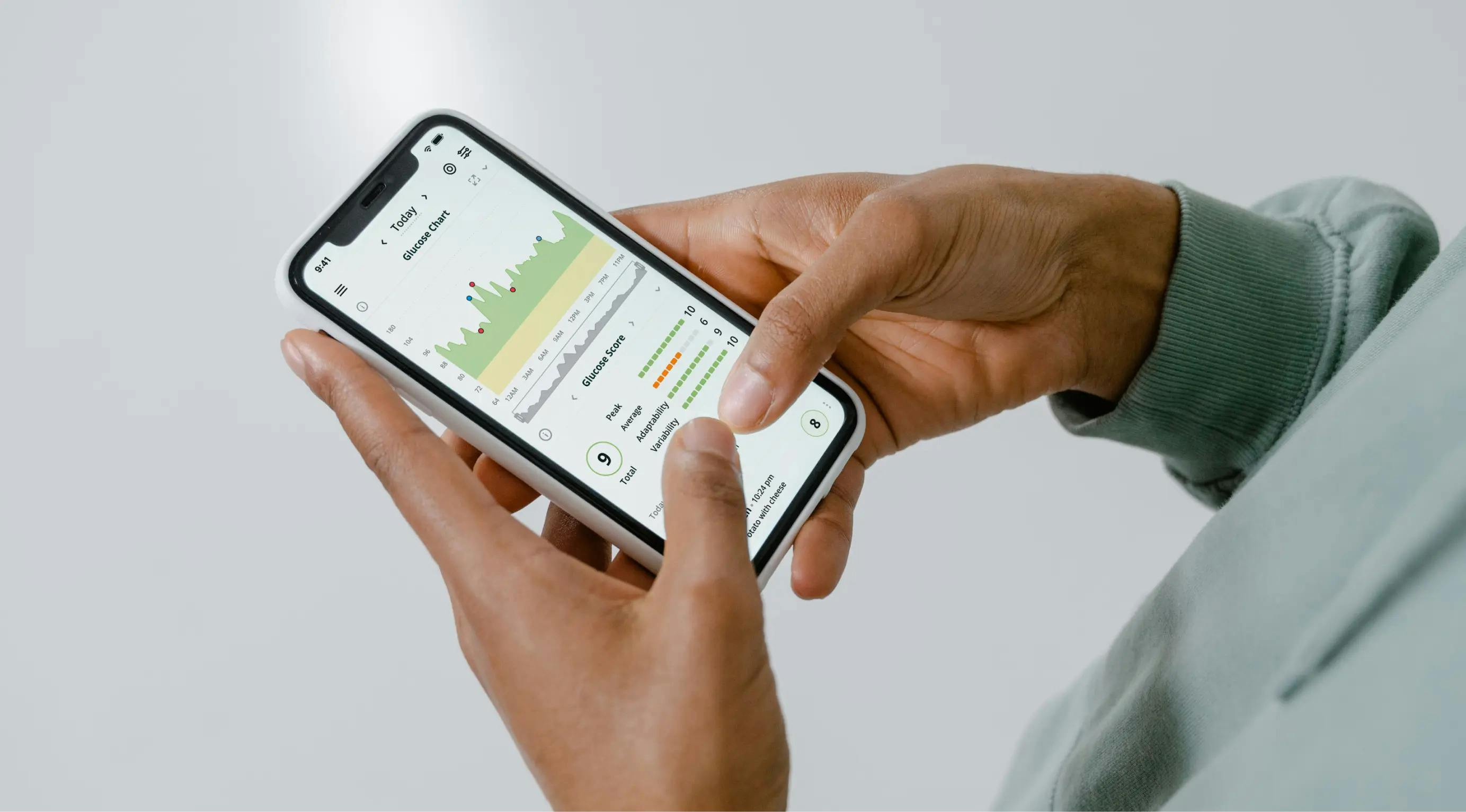
- If you are using a travel eSIM, your provider’s app usually has its own usage dashboard that updates more frequently than your phone’s native counter, which can lag anywhere from several minutes to a couple of hours.
The one habit that quietly drains your plan overnight
- Automatic app updates and photo backups are two of the heaviest background data consumers while you are abroad.
- Both iCloud and Google Photos default to backing up over any available connection, including your international mobile plan.
- App updates through the App Store or Play Store behave the same way unless you switch them off.
- Before you fly: turn off automatic app updates in your App Store or Play Store settings
- Before you fly: set iCloud or Google Photos to back up on Wi-Fi only
- These two changes can meaningfully extend how long your eSIM for international travel data allowance lasts across a week away
Why Jetpac removes most of this stress
Jetpac is the top choice for travellers, here’s why:
- One eSIM, everywhere you go: Covers 200+ destinations; top up between trips with no reinstallation.
- Network that never drops: Proprietary multi-network switching keeps you on the strongest signal, always.
- No surprise charges ever: Fully upfront pricing with nothing hidden, and up to 70% less than roaming.
- Hotspot with no ceiling: With Jetpac eSIM, share data freely across devices with zero throttling or caps
- Essential apps stay on: Uber, WhatsApp, and Google Maps keep working even at zero data balance.
- Calls and 5G included: Jetpac gives you access to voice calls across 50+ countries from just $1.99 per 5 minutes
- Support at any hour: The team is reachable via WhatsApp and email around the clock, from anywhere.